Animating SVGs with LLMs
Loading animations, made easy with LLMs, in only 2KB
The other day a friend made a joke that as LLMs become more ubiquitous, we'll see a renaissance of high quality loading animations. We're getting more and more 30s wait times, and a simple spinner isn't going to cut it anymore.

I started exploring how to build custom loading animations with LLMs. Not Sora generating 6MB videos, but animated SVGs that are only a few KB, render instantly, and are pixel perfect vector graphics. I've landed on a system that works pretty well!
Step 1: Keyframe SVGs
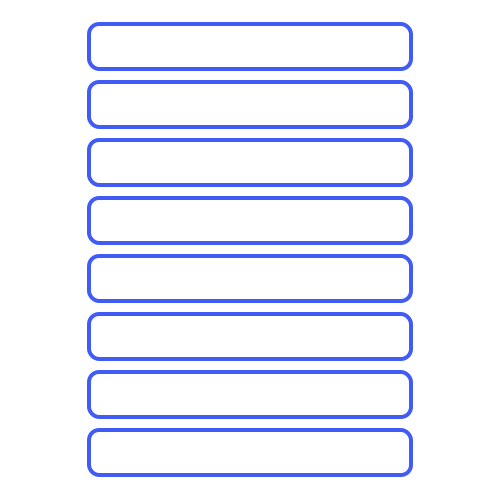
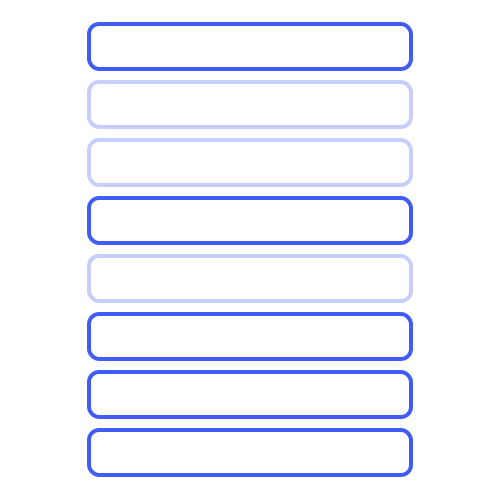
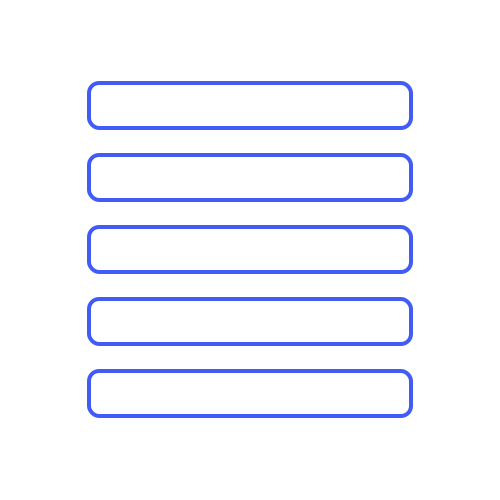
The first step is to create a set of keyframe SVGs, each representing a single frame of the animation. The idea here is to do the drawing yourself, but leave the animation details to the LLM. I personally use Figma for this.
Here's an example set of 4 keyframes we'll build an animation from:

Step 2: Git Repo and Backups
Create a git repo with your keyframes, and work with the LLM of your choice to build each transition. Commit progress often. The edit process is very hit and miss, so it's key to be able to revert to a previous state.
Step 3: Create Documentation for the Timeline
You need the LLM to generate documentation for each decision as you go, or you'll quickly start regressing prior edits. Specifically, tell it to document the timeline, phases, transitions and motion details as you go. You don't need to write the docs yourself, but ensure the LLM is updating them as you make decisions. This is saved right into the SVG as a comment. Here's an example of my final timeline. In practice it was written by the LLM and was built one decision at a time.
╔══════════════════════════════════════════════════════════════════════════════╗ ║ ANIMATION TIMELINE DOCUMENTATION ║ ╚══════════════════════════════════════════════════════════════════════════════╝ OVERVIEW: This animation shows 8 boxes appearing, with 3 fading out and 5 remaining. The remaining 5 boxes then move simultaneously to new positions, followed by checkmarks and X icons appearing on them. TIMELINE STRUCTURE: ──────────────────────────────────────────────────────────────────────────────── PHASE 1: STAGGERED APPEARANCE (0.1s - 2.2s) • All 8 boxes appear at staggered times with scale animations • Each box: scale animation (0.3s duration) + opacity fade in (0.1s) • Box appearance times: - Box 7: 0.1s - Box 5: 0.3s (will fade out) - Box 4: 0.5s - Box 2: 0.8s (will fade out) - Box 6: 1.1s - Box 3: 1.4s (will fade out) - Box 1: 1.7s - Box 8: 1.9s PHASE 2: SYNCHRONIZED FADE OUT (completes at 3.0s) • Three boxes (Box 2, Box 3, Box 5) fade out simultaneously • All three complete their fade at exactly 3.0s • Critical: No other animations occur during fade-out completion • Box 2: fades 0.8s → 3.0s (2.2s duration) • Box 3: fades 1.4s → 3.0s (1.6s duration) • Box 5: fades 0.3s → 3.0s (2.7s duration) PHASE 5: FLY OUT TO RIGHT (6.0s - 7.0s) • After 1.0s hold, all boxes and icons fly out to the right • Start time: 6.0s (1.0s hold after last icon appears at 5.0s) • Duration: 0.6s per row • Staggered by 0.1s (top to bottom): - Row 1 (Box 1 + Check 1): 6.0s - 6.6s - Row 2 (Box 4 + Check 2): 6.1s - 6.7s - Row 3 (Box 6 + Check 3): 6.2s - 6.8s - Row 4 (Box 7 + X 1): 6.3s - 6.9s - Row 5 (Box 8 + X 2): 6.4s - 7.0s • All elements move from current x position to x=600 (off-screen right) KEY TIMING DECISIONS: ──────────────────────────────────────────────────────────────────────────────── 1. Fade-out phase is isolated: No movement occurs during fade completion 2. All fade-outs synchronized to end at exactly 3.0s 3. Movement phase is synchronized: All boxes move together (3.0s - 4.0s) 4. Movement duration is exactly 1.0s for clean, crisp animation 5. Icons appear only after movement completes (0.2s buffer for clarity) 6. Icon appearances are staggered for visual interest (0.2s intervals) 7. Fly-out starts after 1.0s hold (at 6.0s) with top-to-bottom stagger (0.1s) MODIFICATION GUIDELINES: ──────────────────────────────────────────────────────────────────────────────── • To change fade-out timing: Adjust fade durations so all end at same time • To change movement timing: Update all 5 boxes' y-animate begin/dur together • To adjust movement speed: Modify dur="1s" on all movement animations • To shift icon timing: Ensure icons start after movement phase completes • To change fly-out timing: Adjust both box x-animate and icon translate together • To adjust stagger interval: Modify 0.1s increments between row fly-outs • Phase boundaries: 0s → 3.0s → 4.0s → 5.0s → 6.0s → 7.0s
Step 4: Label Elements of the SVG
Labeling each element of the SVG helps the LLM understand the context of the animation. Again: the LLM can do this work, but you might need to nudge it a bit. Here's an example of an SVG element with a name and description of its behaviour:
<-- Box 4: y=198 -> y=155 (stays, moves, gets checkmark) -->
Step 5: Build the Animation Step by Step
aka: Draw the Owl
Next ask the LLM to build the animation, working step by step, one transition at a time. Here's my playbook for the editing process:
- Start with the first transition, and work your way through the timeline.
- Ensure the LLM knows "Phase" it's currently working on: which two keyframes are being transitioned between
- Describe the Phase transition in detail: motion, timing, etc
- Be super clear that it shouldn't change anything outside of the Phase it's working on.
- You don't need to be an animation expert. Prompts like "make it pop in", "less horizontal motion", or "stagger the timing" work fine in an iterative loop. Revert and try again if it doesn't work.
- Ask the LLM to document a plan before implementing. Verify the plan is correct before starting the implementation. Keep the docs up to date as you go.
- Start fresh chats with the LLM for each Phase.
- Backup as you go, you're going to have to revert!
Step 6: Get Creative
Be creative and ask it to try a variety of animations. LLMs can be a decent creative partner, at least for simple animations.
Happy vibing!
